Hall Ledger User Guide
Hall Ledger (HL) is a desktop application that helps Resident Assistants (RAs) efficiently manage residents in NUS halls. It is optimised for users who prefer typing commands, while still offering an intuitive visual interface for viewing resident data at a glance.
Quick start
Ensure you have Java
17or above installed in your Computer.
Mac users: Ensure you have the precise JDK version prescribed here.Download the latest
.jarfile from here.Copy the file to the folder you want to use as the home folder for your HallLedger.
Open a command terminal,
cdinto the folder you put the jar file in, and use thejava -jar hall-ledger.jarcommand to run the application.
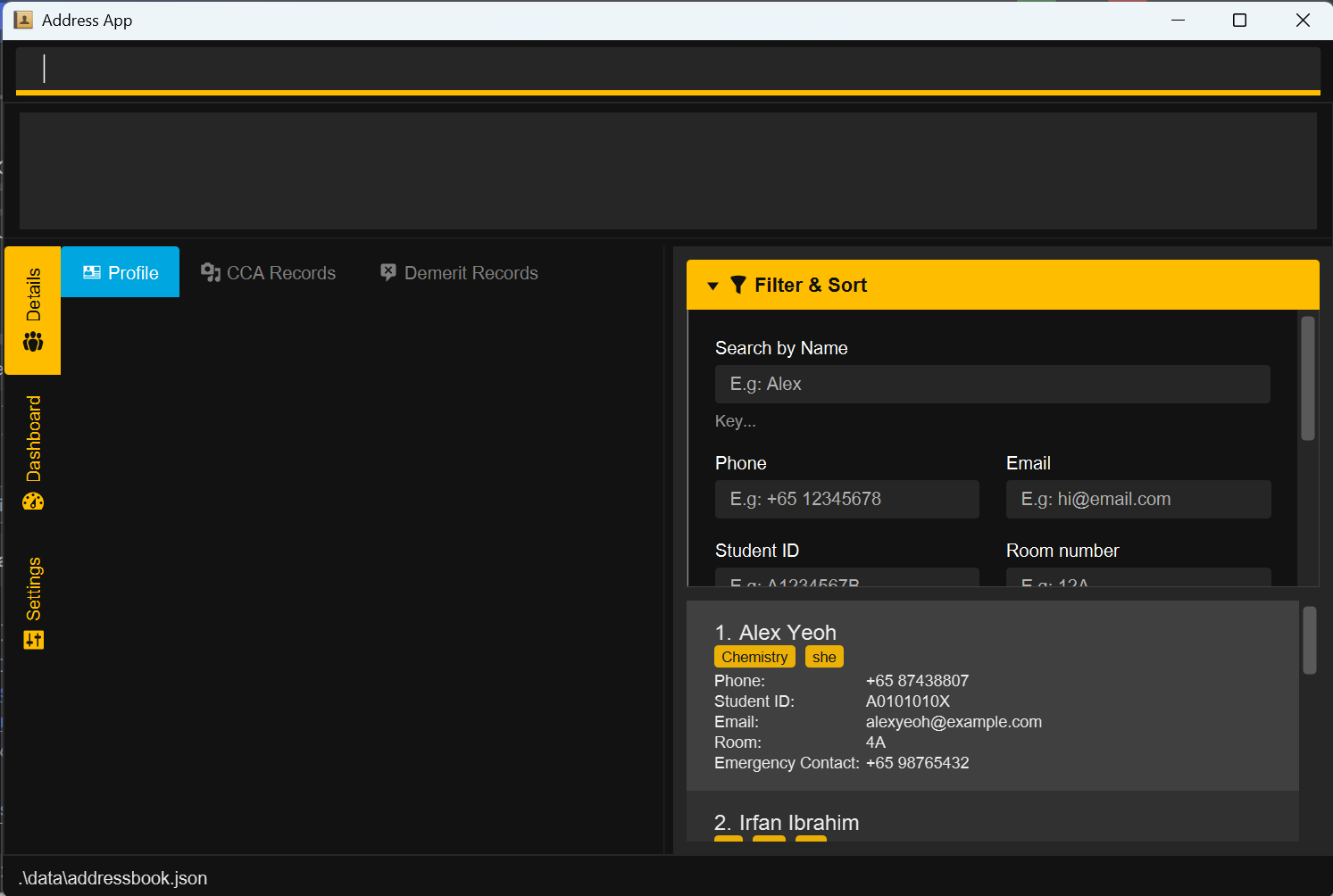
A GUI similar to the below should appear in a few seconds. Note how the app contains some sample data.
Type the command in the command box and press Enter to execute it. e.g. typing
helpand pressing Enter will open the help window.
Some example commands you can try:list: Lists all residents.add n=John Doe p=+6598765432 e=johnd@example.com i=A1234567X r=1A ec=+65 12345678: Adds a resident namedJohn Doeto HallLedger.demeritlist: Shows the indexed demerit rules available in HallLedger.demerit i=A1234567X di=18 rm=Visitor during quiet hours: Adds a demerit record to the resident with student IDA1234567X.delete i=A1234567X: Deletes the resident with student IDA1234567X.clear: Deletes all residents.exit: Exits the app.
Refer to the Features below for details of each command.
Features
Notes about the command format:
Words in
UPPER_CASEare the parameters to be supplied by the user.
e.g. inadd n=NAME,NAMEis a parameter which can be used asadd n=John Doe.Items in square brackets are optional.
e.gn=NAME [e=EMAIL]can be used asn=John Doe e=johnd@example.comor asn=John Doe.Items with
… after them can be used multiple times including zero times.
e.g.[t=TAG]…can be used as(i.e. 0 times),t=friend,t=friend t=familyetc.Parameters can be in any order.
e.g. if the command specifiesn=NAME p=PHONE_NUMBER,p=PHONE_NUMBER n=NAMEis also acceptable.Extraneous parameters for commands that do not take in parameters (such as
help,list,exitandclear) will be ignored.
e.g. if the command specifieshelp 123, it will be interpreted ashelp.If you are using a PDF version of this document, be careful when copying and pasting commands that span multiple lines as space characters surrounding line-breaks may be omitted when copied over to the application.
Viewing help : help
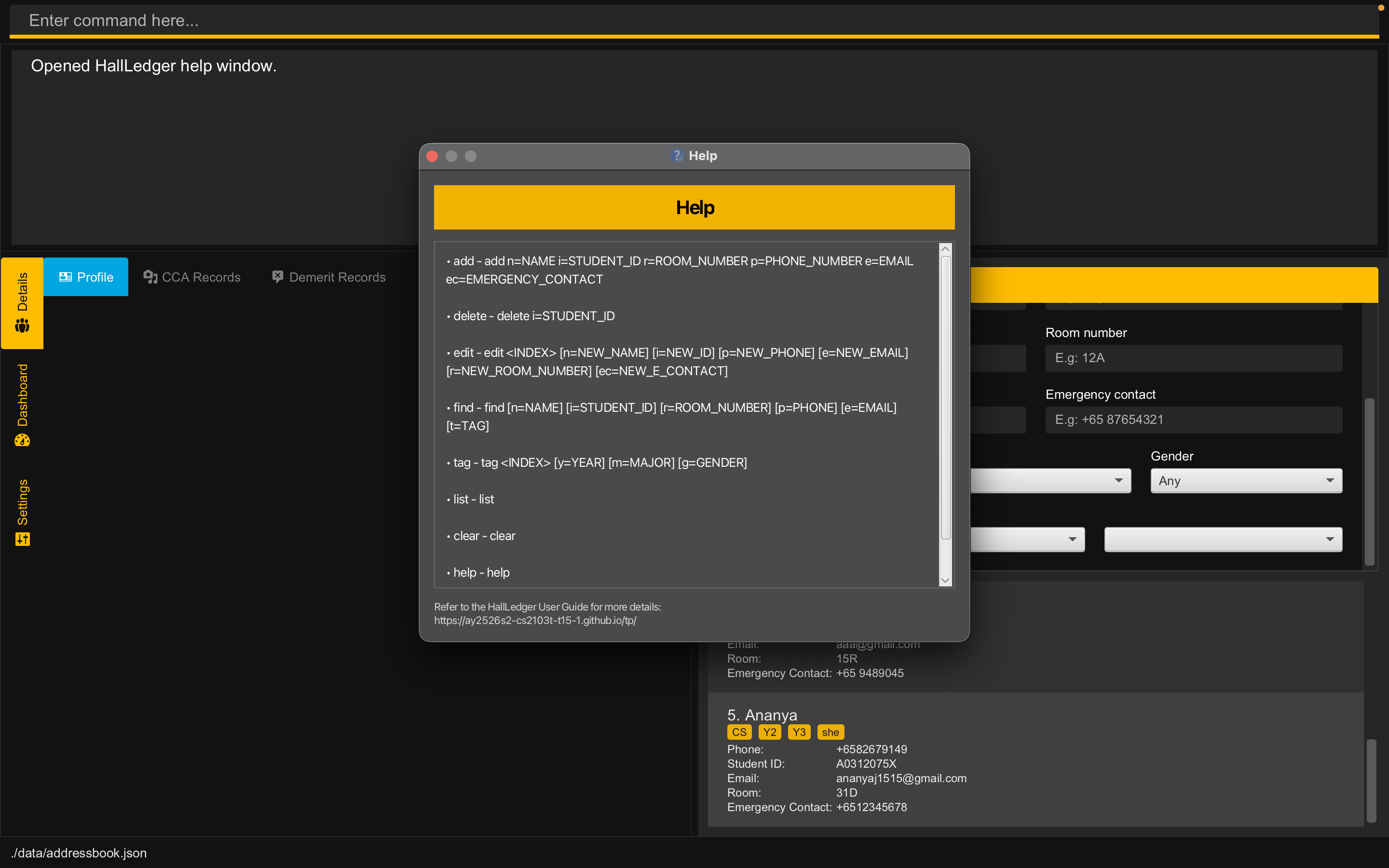
Opens the HallLedger Help window, which displays the available commands and their usage formats.
Format: help
Example:
help
When the command is entered, HallLedger opens a Help window containing a quick reference list of supported commands. The Help window also includes a reference to the HallLedger User Guide for more detailed explanations.
Adding a person: add
Adds a person to the hall ledger.
Format: add n=NAME p=PHONE_NUMBER e=EMAIL i=STUDENT_ID r=ROOM_NUMBER ec=EMERGENCY_CONTACT
Examples:
add n=John Doe p=+6598765432 e=johnd@example.com i=A101010X r=1A ec=+91 2345 9876add n=Betsy Crowe i=A202020Y e=betsycrowe@example.com p=+65 1234567 r=14L ec=+6512345678
NOTE
A newly added person will not have any tags
Listing all persons : list
Shows a list of all persons in the address book.
Format: list
Tagging a student: tag
Adds Major, Year and Gender tags to an existing student.
Format: tag i=STUDENT_ID [m=MAJOR] [y=YEAR] [g=GENDER]
- Adds or edits tags for the student uniquely identified by STUDENT_ID.
- STUDENT_ID must be in a valid format and exist in the Hall Ledger
- At least one of the optional tag fields (m=, y=, g=) must be provided.
- Existing tags are replaced (not cumulative).
- Each student can have at most one Year, one Major, and one Gender tag at any time.
- Re-tagging a student will overwrite previously assigned tags with the new values provided.
Examples:
tag i=A0123456N y=Y3 m=Information Systems: Assigns Year 3 and Information Systems as the student’s tags (any existing tags are replaced).tag i=A0101010X g=Female: Updates the student’s Gender to Female and leaves other tags unchanged.
Editing a person : edit
Edits an existing student in the Hall Ledger.
Format: edit STUDENT_ID [n=NAME] [p=PHONE] [e=EMAIL] [r=ROOM_NUMBER] [ec=EMERGENCY_CONTACT]
- Edits the student with the specified STUDENT_ID. STUDENT_ID is used to uniquely identify each student in the displayed student's list. The STUDENT_ID must be a valid student ID e.g.
A1234567X. - At least one of the optional fields must be provided.
- Existing values will be updated to the input values.
Examples:
edit A1234567X p=91234567 e=johndoe@example.comedits the phone number and email address of the resident with student IDA1234567Xto be91234567andjohndoe@example.comrespectively.edit A8765432Y n=Betsy Crower ec=98765432edits the name and emergency contact of the resident with student IDA8765432Yto beBetsy Crowerand98765432respectively.
Locating persons: find
Finds residents using one or more fields such as name, phone, email, room, student ID, emergency contact, year, major, and gender.
Using the command line
Format: find [n=NAME] [p=PHONE] [e=EMAIL] [r=ROOM_NUMBER] [i=STUDENT_ID] [ec=EMERGENCY_CONTACT] [y=YEAR] [m=MAJOR] [g=GENDER]
- Matching ignores letter case, and field order does not matter.
- e.g.
find n=Alice y=Y1gives the same result asfind y=Y1 n=ALICE.
- e.g.
- If you use different fields together, a resident must satisfy all of them.
- e.g.
find n=Alice p=9123 y=Y1returns residents who match name, phone, and year.
- e.g.
- If you repeat the same field, matching any one of those values is enough.
- e.g.
find y=Y2 y=Y3returns residents in Year 2 or Year 3. - e.g.
find n=Hans Bo n=Anna Leereturns residents matching eithern=value.
- e.g.
- You can provide up to 10 values per field.
g=GENDERuses full-value matching (case-insensitive). Other fields use fuzzy-friendly matching.
Examples:
find n=John Doereturns residents whose names matchJohn Doe.find n=Alex n=Davidreturns residents matching either name value.find m=CS m=Economics g=Male g=Othersreturns residents whose major isCSorEconomics, and whose gender isMaleorOthers.find ec=+84 e=gmailreturns residents whose emergency contact matches+84and email matchesgmail.
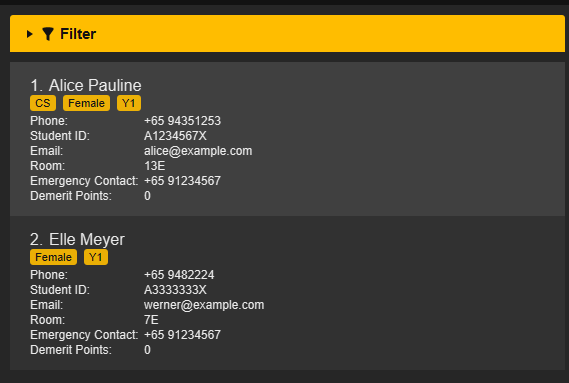
Result of running find n=Alice Pauline from the command line (matching resident(s) are shown in the list view):
Using the user interface
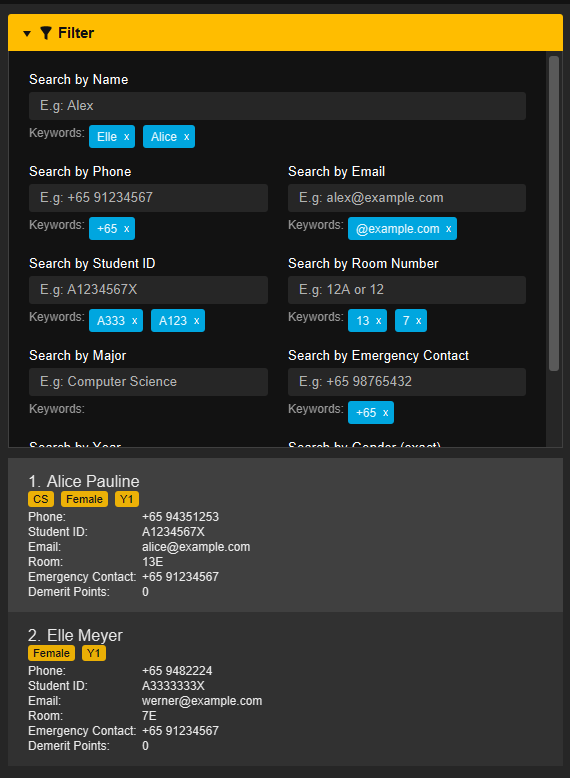
- Open the Filter panel to show the filter controls.
- Enter one or more keywords in any field, then press Enter to apply the filter.
- You can combine multiple keywords across multiple fields. The same matching behavior as the command-line
findapplies. - To remove a keyword, click the
xbeside that keyword.
For full matching behavior and examples, see Fuzzy Matching Details.
Adding a remark: remark
Adds a remark to an existing resident.
Format: remark i=STUDENT_ID rm=REMARK
- Remark can be viewed in the resident's profile tab.
- If a remark already exists for the resident, it will be overwritten by the new remark.
- Empty remark (
rm=) will clear the existing remark.
Examples:
- Add/update a remark:
remark i=A1234567X rm=Allergic to peanuts - Clear a remark:
remark i=A1234567X rm=
Listing demerit rules: demeritlist
Shows the indexed demerit rules available in HallLedger.
Format: demeritlist
- Displays the demerit rule catalogue together with the rule index and point tiers.
- Use the displayed rule index together with the
demeritcommand when recording a resident’s demerit incident.
Example:
demeritlist
Adding a demerit record: demerit
Adds a demerit record to an existing resident.
Format: demerit i=STUDENT_ID di=RULE_INDEX [rm=REMARK]
- Applies the demerit rule identified by
RULE_INDEXto the resident identified bySTUDENT_ID. STUDENT_IDmust refer to an existing resident in HallLedger.RULE_INDEXmust match one of the indexed rules shown bydemeritlist.- If the same resident receives the same rule again, HallLedger automatically applies the next offence tier for that rule.
rm=is optional and can be used to store a short context note for that incident.- The resident’s displayed total demerit points will update after the command succeeds.
Examples:
demerit i=A1234567X di=18demerit i=A1234567X di=18 rm=Visitor during quiet hoursdemerit i=A0312075X di=28 rm=Common pantry left dirty
Current scope note: HallLedger records resident demerit incidents and their accumulated totals. It does not yet automatically enforce semester-based or lifetime housing sanctions.
Deleting a resident : delete
Deletes the resident identified by student ID from HallLedger.
Format: delete i=STUDENT_ID
Example:
delete i=A0312075X
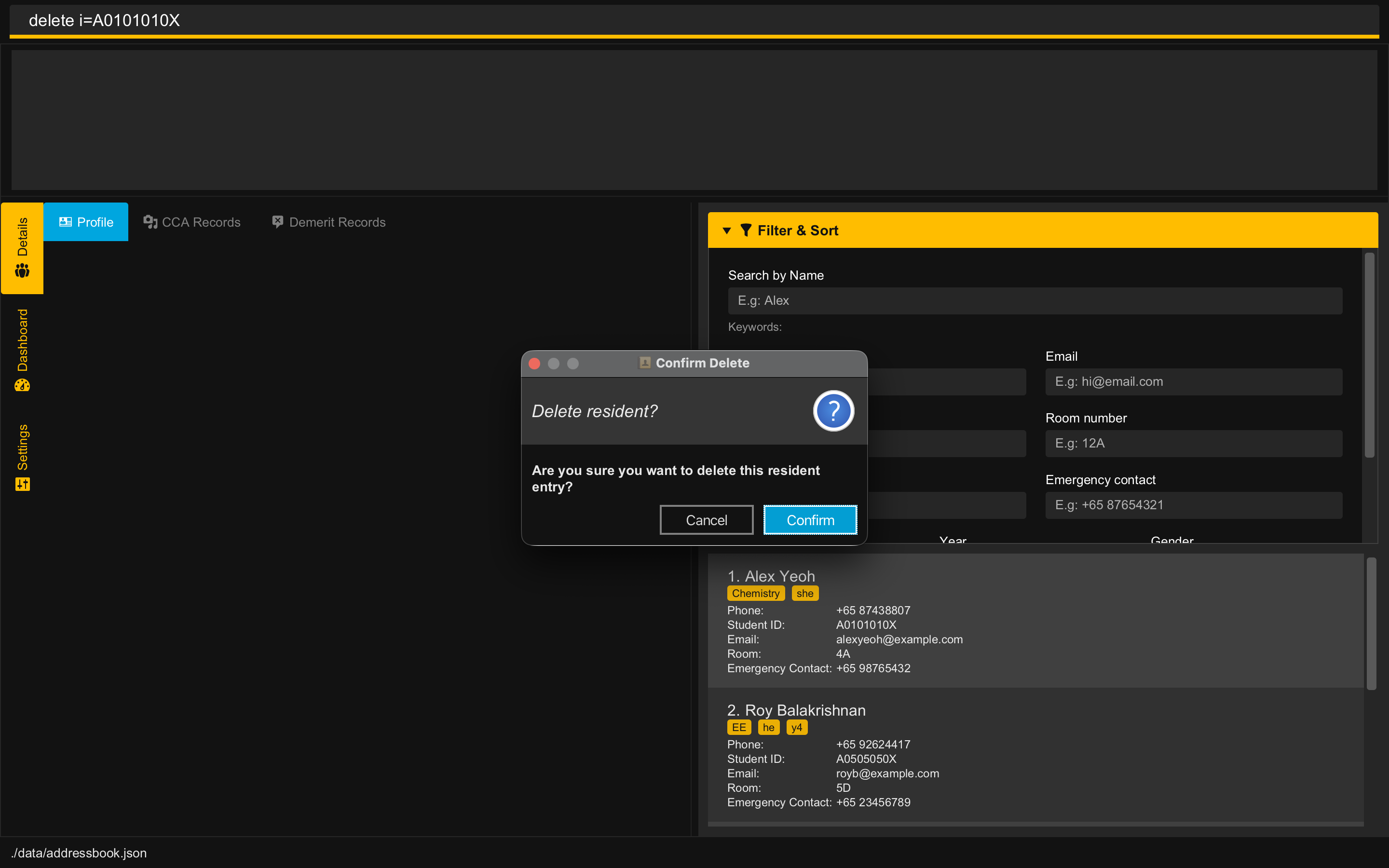
After a valid delete command is entered, HallLedger shows a confirmation dialog before the resident is actually removed.
- Click Confirm to proceed with the deletion.
- Click Cancel to stop the deletion. HallLedger will display the message
Deletion cancelled.and no resident will be removed.
If the command format is invalid, HallLedger will show an error message instead of opening the confirmation dialog.
Clearing all entries : clear
Clears all entries from the address book.
Format: clear
Exiting the program : exit
Exits the program.
Format: exit
Saving the data
HallLedger data are saved in the hard disk automatically after any command that changes the data. There is no need to save manually.
Editing the data file
HallLedger data are saved automatically as a JSON file [JAR file location]/data/addressbook.json. Advanced users are welcome to update data directly by editing that data file.
Caution:
If your changes to the data file make its format invalid, HallLedger will discard all data and start with an empty data file at the next run. Hence, it is recommended to take a backup of the file before editing it.
Furthermore, certain edits can cause HallLedger to behave in unexpected ways (e.g., if a value entered is outside the acceptable range). Therefore, edit the data file only if you are confident that you can update it correctly.
Archiving data files [coming in v2.0]
Details coming soon ...
FAQ
Q: How do I transfer my data to another Computer?
A: Install the app on the other computer and overwrite the empty data file it creates with the file that contains the data of your previous HallLedger home folder.
Q: Can I edit the data file manually?
A: Yes. HallLedger stores data locally in a human-editable text file. However, manual edits should be done carefully, because invalid edits may prevent HallLedger from loading the data correctly.
Q: How do I go back to seeing the list of all students after running find?
A: Run the list command to see the full list of students again.
Known issues
- When using multiple screens, if you move the application to a secondary screen, and later switch to using only the primary screen, the GUI will open off-screen. The remedy is to delete the
preferences.jsonfile created by the application before running the application again. - If you minimize the Help Window and then run the
helpcommand (or use theHelpmenu, or the keyboard shortcutF1) again, the original Help Window will remain minimized, and no new Help Window will appear. The remedy is to manually restore the minimized Help Window.
Command summary
| Action | Format, Examples |
|---|---|
| Add | add n=NAME p=PHONE_NUMBER e=EMAIL i=STUDENT_ID r=ROOM_NUMBER ec=EMERGENCY_CONTACT e.g., add n=James Lee p=+65 98765432 e=james@example.com i=A1234567X r=15R ec=+65 98765432 |
| Clear | clear |
| Delete | delete i=STUDENT_IDe.g., delete i=A1234567X |
| Edit | edit STUDENT_ID [n=NAME] [p=PHONE_NUMBER] [e=EMAIL] [r=ROOM_NUMBER] [ec=EMERGENCY_CONTACT]e.g., edit A1234567X n=James Lee e=jameslee@example.com |
| Tag | tag i=STUDENT_ID [m=MAJOR] [y=YEAR] [g=GENDER]e.g., tag i=A1234567X m=CS y=Y3 |
| Find | find [n=NAME] [p=PHONE] [e=EMAIL] [r=ROOM_NUMBER] [i=STUDENT_ID] [ec=EMERGENCY_CONTACT] [y=YEAR] [m=MAJOR] [g=GENDER]e.g., find n=James y=Y1 |
| Remark | remark i=STUDENT_ID rm=REMARKe.g., remark i=A1234567X rm=Allergic to peanuts |
| Demerit List | demeritlist |
| Add Demerit | demerit i=STUDENT_ID di=RULE_INDEX [rm=REMARK]e.g., demerit i=A1234567X di=18 rm=Visitor during quiet hours |
| List | list |
| Help | help |